Networking
The camera supports various networking operations including connecting to access points in Station Mode (STA), Bluetooth Classic pairing, wireless band selection, and network ownership management.
Station Mode is necessary for features such as Live Streaming where the camera needs an Internet connection. While in this mode, HTTP command and control of the camera is not available on some cameras.
Internet Access
Before Hero 13 Black, the camera could only connect to access points that did not require internet access. From Hero 13 Black onwards, it is possible to connect to a local network by setting the bypass_eula_check flag in the Connect to a New Access Point protobuf request.
Operations
Connect Bluetooth Classic
Connect to or disconnect from another Bluetooth Classic device on supported HERO7-era cameras.
Loading...Loading...Connect to a New Access Point
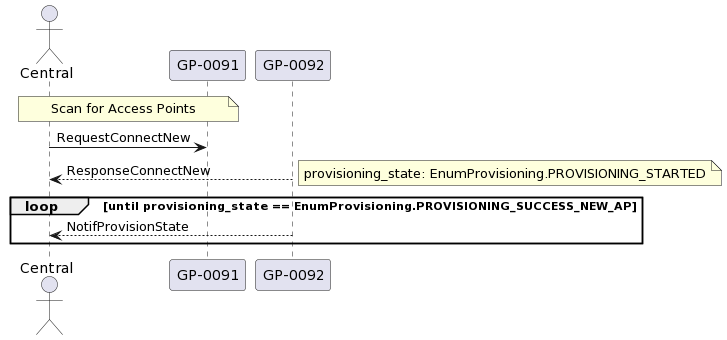
This operation can only be used on an Access Point that has not been previously configured. Therefore it
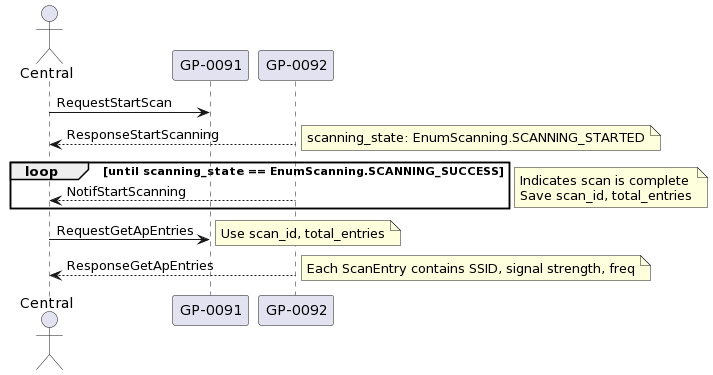
is first necessary to Scan for Access Points, then Get AP Scan Results to
ensure that the relevant Scan Entry does not have the SCAN_FLAG_CONFIGURED bit set.
Connect to MFi Access Point
Connect the camera to an access point using the historical MFi provisioning flow.
This command was released on HERO7 and then scrapped afterward. Newer cameras generally return NOT_SUPPORTED.
Connect to Provisioned Access Point
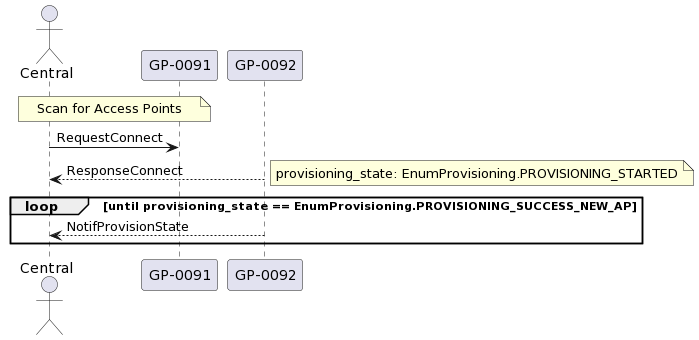
This operation can only be used on an Access Point that has been previously configured. Therefore it is
first necessary to Scan for Access Points, then Get AP Scan Results to ensure
that the relevant Scan Entry has the SCAN_FLAG_CONFIGURED bit set.
Delete All Stored Access Points
Delete Stored Access Point
Disconnect from Access Point
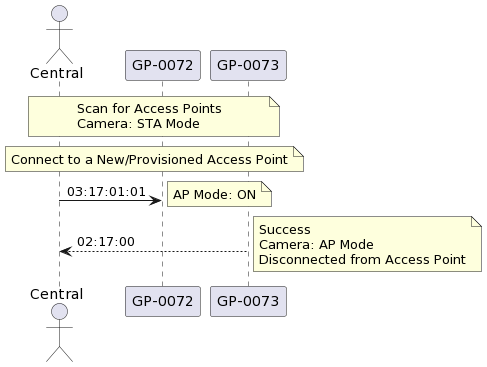
To disconnect from a connected Access Point and return the camera to AP mode, use Set AP Control to set AP Control On, which disables Station Mode.
Get AP Scan Results
Get Network Capabilities
Get network capabilities from the camera.
Loading...Loading...Pair Bluetooth Classic
Pair BLE with Bluetooth Classic on supported HERO7-era cameras.
Loading...Loading...Ping
Send a simple ping over the network-management BLE channel.
This command is deprecated and modern cameras may respond with NOT_SUPPORTED.
Release Network Ownership
Release the current client's ownership claim over the camera network.
Loading...Loading...Scan for Access Points
Select Wireless Band
Select the wireless band used by the camera.
Loading...Loading...Set AP Control
Enable / disable the camera's WiFi access point.
The command response confirms that the camera accepted the request, not that the WiFi AP is ready for
connections. After enabling the AP (mode 1 or 2), monitor Status 69 (AP Mode) and wait
for it to become 1 before attempting to connect via WiFi. There is a brief startup delay while the camera
initializes the WiFi hardware and DHCP server.
Request (UUID: Command)
Parameters:
mode(uint8): 0 to disable, 1 to enable, 2 to bounce (disable → enable)
Response (UUID: Command Response)
Set Cold Boot Sequence
Configure the power-policy rules used for cold-boot services.
Loading...Loading...Set Resume Sequence
Configure the power-policy rules used when resuming services.
Loading...Loading...Set WiFi Config V2
Write the WiFi AP SSID and password over the BLE WiFi characteristics.
The SSID is written to the WiFi AP SSID characteristic and must be paired with a write to the WiFi AP password characteristic for the new config to take effect.
Request
- Write the new SSID bytes to the WiFi AP SSID characteristic
- Write the new password bytes to the WiFi AP password characteristic
Start Network OTA Update
Start, force-start, or cancel the legacy network OTA flow after the camera has been provisioned to an access point.
Loading...Loading...Stop Network Features
Stop active camera network features.
Loading...Loading...Take Network Ownership
Take ownership of the camera network with an owner type, AP enable state, AP timeout, and owner name.
Loading...Loading...